
How to Get the Script of a YouTube Video (3 Free Ways)
Three free ways to pull the script or transcript from any YouTube video, and how creators use competitor scripts for research.
Key Takeaways
- All three free methods below read the exact same source data — YouTube’s own caption track. None of them can produce a transcript for a video with captions disabled, and none of them is more “accurate” than another.
- The built-in transcript panel needs no tool and no download — Show transcript, in the description or the “⋯” menu, is the fastest path for one video.
- yt-dlp is the only method of the three that scales past a handful of videos — one command line pulls captions for a whole list of URLs.
- Reading a competitor’s script for research is fair use. Republishing it — as a blog post, a captioned reupload, a “summary” that’s mostly their words — isn’t automatically protected just because you added a disclaimer.
- The actual value isn’t the text — it’s what you measure in it: hook wording, where the re-hook lands, and the speaking rate in words per minute.
A video breaks out in your niche — a few hundred thousand views in a week — and the useful question isn’t “what did they say,” it’s “why did that exact opening line hold people when mine didn’t.” You can’t answer that by rewatching at 1x with a notepad. You need the words as text, side by side with your own draft. Learning how to get the script of a YouTube video is a five-minute problem, and it’s free — no software, no browser extension you have to trust, no signup — through any of the three routes below.
All three pull from the same place: the caption track YouTube already generated or the creator already uploaded. There isn’t a hidden, more complete transcript one method can reach that another can’t — the difference between them is speed, convenience, and whether you need one video or fifty.
Getting a YouTube transcript, by the numbers
3
Free ways to pull a transcript — no paid tool required
150 wpm
Average conversational speaking rate, the baseline for pacing
184K+
GitHub stars on yt-dlp, the tool behind the power-user method
Sources: National Center for Voice and Speech, via VirtualSpeech · yt-dlp GitHub repository
Method 1: YouTube’s built-in transcript panel
This is the fastest option for a single video and it’s built into YouTube itself — no third-party site, nothing to install. YouTube’s own help page confirms it works for “the full transcript of any video that has captions,” which is the one real limitation: no captions, no transcript, from any method.
On desktop
Two entry points to the same panel
- Below the title, click the ⋯ (More actions) icon in the row with Like, Share, and Save — or expand the description and scroll to the bottom.
- Click Show transcript. A panel opens beside the player with the full caption text, timestamped line by line.
- Click any line to jump the video to that moment, or use the panel’s Search in video box to find a phrase directly.
- Click into the panel, select all, and copy — you now have the transcript as plain text, timestamps and all.
Best for: Anyone reading one video's script right now, on a laptop.
On mobile
App only — the mobile site doesn't have this
- Open the video in the YouTube app and expand the description.
- Scroll down to Show transcript and tap it.
- The transcript scrolls in sync with playback, same as desktop.
- Tap and hold to select text, then copy — the mobile web browser (not the app) doesn’t expose this option at all, so use the app.
Best for: Pulling a transcript from your phone, in the YouTube app.
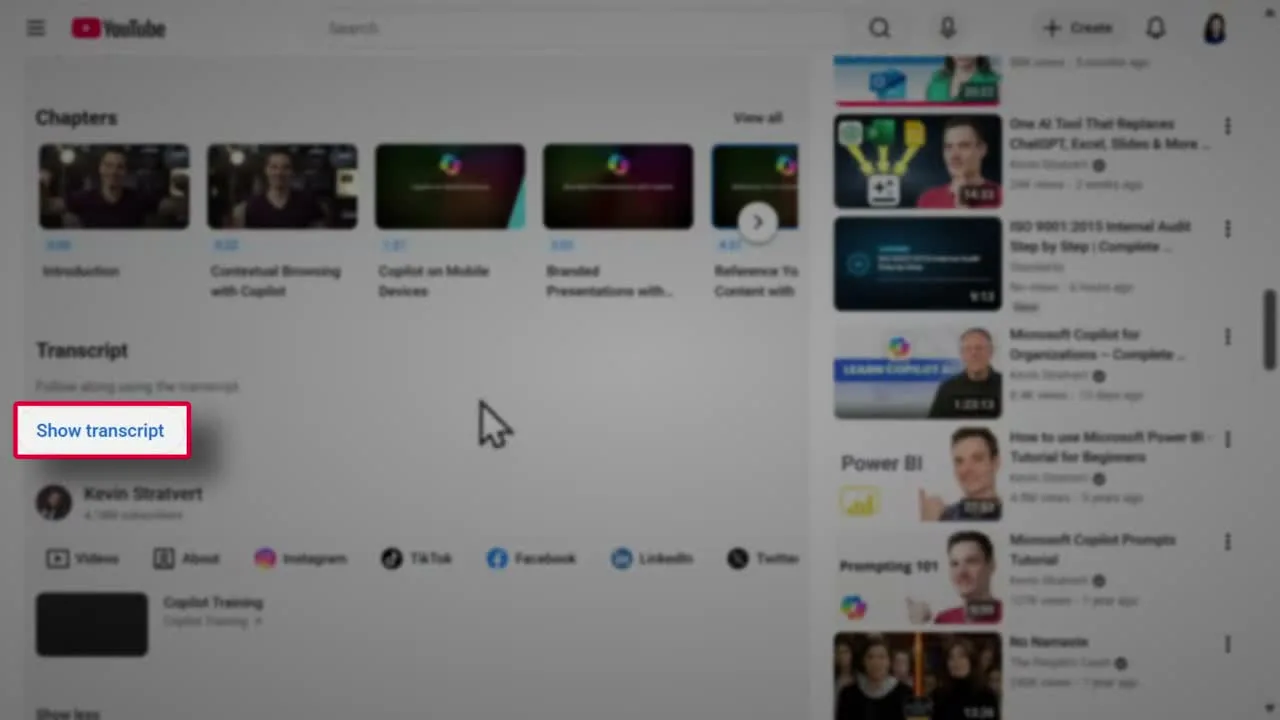
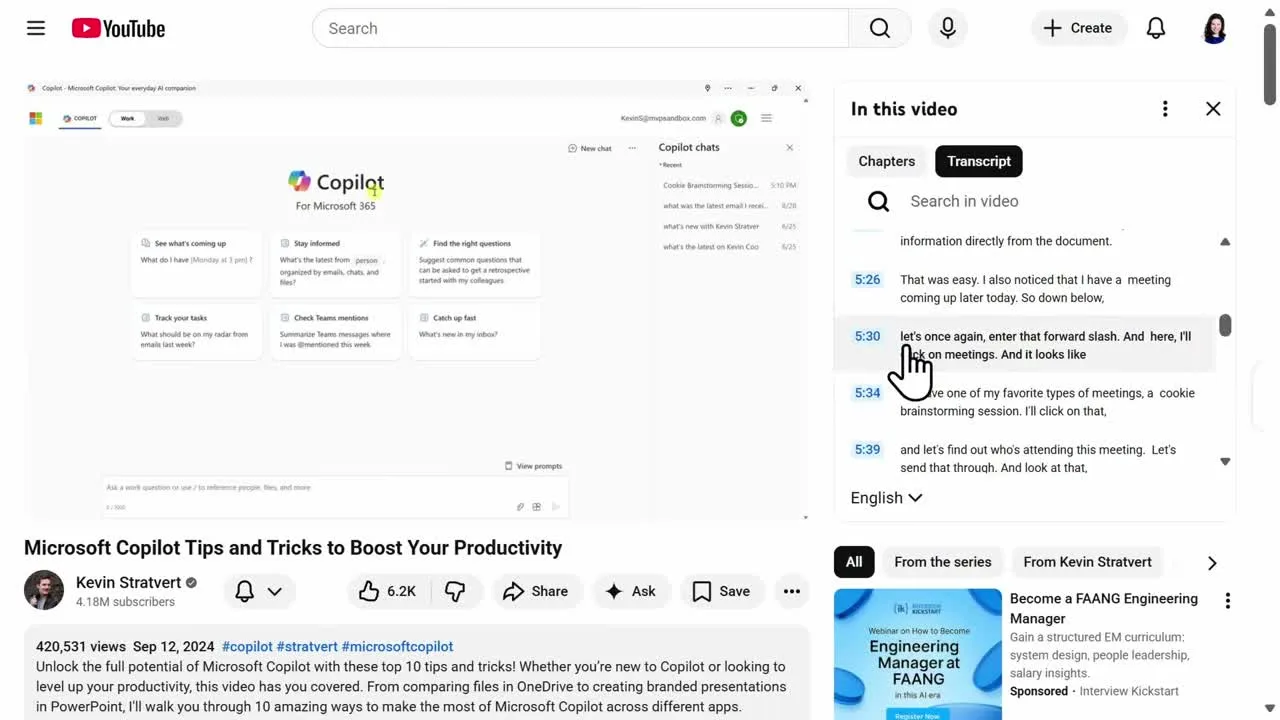
The timestamp toggle is inconsistent right now
Several current guides describe a three-dot menu inside the panel with a “toggle timestamps” option, and some accounts do see one. But in his own walkthrough of this exact feature, Kevin Stratvert notes that YouTube “used to offer a feature where you could eliminate the timestamps when viewing the entire transcript” and that “this feature has been removed for now.” The sources disagree — most likely because YouTube is rolling the option out unevenly. If you don’t see a toggle, his workaround still works: copy the transcript with timestamps intact and ask an AI assistant to strip them.Method 2: Free transcript extractor tools
Skip the panel entirely by pasting the video’s URL into a transcript-extractor site. These are useful when you don’t want to open the video itself — screening several competitor videos back to back is faster as a list of pasted links than a list of open tabs — or when you want clean, continuous text without scrubbing timestamps out yourself.
- Copy the YouTube video’s URL.
- Paste it into a free extractor such as Tactiq’s YouTube transcript tool, which requires no signup and no email to get the text.
- The tool fetches YouTube’s own caption data and renders it as a page of text.
- Copy it directly, or use the tool’s download option to save a .txt file.
These tools don't have a transcript YouTube doesn't
An extractor is a convenience layer on top of the exact same caption track Method 1 reads — not a separate, more complete source. If a video has captions turned off, every free extractor will fail on it the same way the built-in panel does. Tools that claim to transcribe a captionless video are running their own speech-to-text pass in the background, which is a different (and usually paid) product.Method 3: yt-dlp, for more than one video at a time
The first two methods top out at one video, manually, every time. yt-dlp — an open-source command-line downloader with over 184,000 GitHub stars — pulls subtitles directly, without opening a browser, and it’s the only method here that scales to a batch of URLs in a text file or a loop in a script.
- Install it:
brew install yt-dlpon macOS, orpip install yt-dlpanywhere with Python. - Run one command, with no video download at all:
yt-dlp --skip-download --write-subs --write-auto-subs \
  --sub-langs en --convert-subs srt "https://www.youtube.com/watch?v=VIDEO_ID"
--skip-downloadkeeps the video itself off your disk.--write-subsgrabs creator-uploaded captions if they exist;--write-auto-subsfalls back to YouTube’s auto-generated track when they don’t.--convert-subs srtturns the raw caption file into a format any text editor can open cleanly.- For a batch, put one URL per line in a file and add
-a urls.txtin place of a single URL — yt-dlp works through the whole list.
Power-user method, power-user tradeoffs
This is the only method of the three with a real learning curve, and the only one that touches a terminal. If you’ve never installed a command-line tool before, Method 1 or Method 2 gets you the same words with none of the setup.Is this legal? A fast copyright note
Pulling a transcript to read, study, or take notes from is squarely inside fair use — YouTube’s own guidance names research and commentary or criticism as classic examples, and courts weigh whether a use is transformative — whether it adds new expression or meaning rather than just copying — as the central question.
Study it, don't republish it
Reading a competitor’s script for your own research is fine. Pasting that transcript into a blog post, a “summary” video that’s mostly their words with your voice over it, or a captioned reupload is a different act — one that competes with the original for the same audience, which is exactly what fair use doesn’t protect. Per YouTube’s own fair-use guidance, a disclaimer like “no infringement intended” provides no legal shield on its own; courts look at the actual use, not the caption under it.What creators actually do with a competitor’s script
The transcript by itself is just text. The reason creators bother pulling one at all is to measure three specific things a silent read-through won’t surface on its own: the exact wording of the hook, where the video re-opens attention partway through, and how fast the narrator is actually talking. On X, this has become a genuinely common workflow among faceless-channel operators — pull the transcript of a proven video, feed it to an AI assistant with a prompt built to extract hook pattern, structure, and pacing, then write an original script in the same shape for a different topic, without copying the wording. The consistent framing among people doing this: it’s pattern research, the same as a runner studying another runner’s stride, not plagiarism of the words themselves.
Hook (first 10–15 seconds)
- ●What's promised, in the exact words used — not your paraphrase of it
- ●How many seconds pass before the first concrete detail (number, name, claim) lands
- ●Whether the hook opens a question it doesn't answer right away
Structure map
- ●Where the video re-hooks — most re-open a loop somewhere past the halfway mark
- ●How many distinct sections the body breaks into, and roughly how long each runs
- ●Where the call to action sits — once, near the end, or seeded earlier too
Speaking rate (wpm)
- ●Transcript word count divided by runtime in minutes — their real pace, not the felt one
- ●Whether pace changes between the hook and the body (most speed up after the open)
- ●How their measured wpm compares to the 125–150 range most narrated video sits in
Worked example — measuring #03 from a transcript you already pulled
Runtime 8:42 → 8.7 minutes
Transcript word count: 1,050 words
1,050 ÷ 8.7 ≈ 121 wpm — measured, not guessed
That's under the ~150 wpm conversational average — a deliberate slow-down held for nearly nine minutes straight, not sloppy pacing. Worth copying if their retention holds; worth ignoring if it doesn't.
Once you’ve pulled those three measurements from a video that’s working, the actual bottleneck moves to writing your own version at the same discipline — matching the hook style and the pacing without copying a sentence of it. That craft is covered in how to write a video script, including the same loop-and-payoff structure the teardown above is measuring for. Longform Studio’s script step is built for exactly that handoff: you draft against a measured words-per-minute target instead of a guess, and ElevenLabs narration timing updates on every sentence you edit, so a pacing decision made from a competitor’s transcript actually holds once it’s recorded.
This kind of research matters more the longer your videos run — a wpm gap that’s invisible over 90 seconds compounds over 15 minutes, which is part of why runtime and pacing decisions get harder as videos get longer. And if you’re still deciding whether AI-assisted scriptwriting is worth building into your process at all, the criteria for evaluating a YouTube script generator are a separate, specific question from the manual teardown above. Competitor research like this is one piece of the larger system covered in starting a faceless YouTube channel — and once a script is finished, turning it into a rendered video is its own step, laid out in how script-to-video AI actually handles that.
| Method | Setup required | Best for | Downloadable file? |
|---|---|---|---|
| YouTube transcript panel | None | One video, right now | Copy/paste only |
| Free extractor tool | None (paste a URL) | Several videos, no tab-juggling | Usually .txt |
| yt-dlp | Install once | Batches of videos, automation | Yes — .srt/.vtt/.txt |
FAQ
Can I get the transcript of a YouTube video that has no captions?
Not with any of the three free methods here — all three read YouTube's existing caption track, and none of them can produce text where no captions exist. Tools that claim to transcribe a captionless video are running their own speech-to-text pass separately, which is a different (usually paid) service, not a transcript extractor.
Is it legal to copy a YouTube video's transcript?
Reading a transcript for your own research, notes, or commentary sits inside fair use. Republishing it — as a blog post that's mostly their words, a captioned reupload, or a 'summary' video that competes with the original for the same audience — is a different act that fair use generally doesn't protect, regardless of any disclaimer attached to it.
What's the difference between a YouTube transcript and auto-generated captions?
For most videos they're the same text — the transcript panel simply displays whichever caption track exists, creator-uploaded or YouTube's automatic speech recognition. Creator-uploaded captions are usually cleaner, with real punctuation and correct names; auto-generated ones can misspell jargon, brand names, or accented speech, so it's worth spot-checking a transcript against the audio at a couple of timestamps before treating it as exact.
Can I download a YouTube transcript as a file instead of just copying text?
Yes. Most free extractor tools have a download button that saves a .txt file, and yt-dlp can save the original .srt or .vtt subtitle file directly to disk with --write-subs or --write-auto-subs, which is the more precise option if you need exact timestamps preserved in a structured format.
Does watching a video at 2x speed work as well as reading the transcript?
For getting the gist, sure. For measuring a hook's exact wording, marking where a re-hook lands, or calculating speaking rate in words per minute, no — those are text and arithmetic tasks that a transcript makes fast and a sped-up rewatch makes error-prone.
You've reverse-engineered the pattern. Now write your version without losing it.
Longform Studio's script step drafts against a measured words-per-minute target instead of a guess, with ElevenLabs narration timing that updates as you edit — so the pacing decision you pulled from a competitor's transcript is still true once your video is actually recorded.
Try Longform Studio$49/mo plus transparent per-dollar production costs. No markup on provider usage.